Is LinkedIn automation safe? Not in the sense most people hope. LinkedIn's rules forbid bots that add contacts or send messages, so every automation tool carries a risk of restriction, including the one I build. What you control is the size of that risk: how many actions an account takes, how they are spread over the day, and whether the people you contact accept you or ignore you. This guide quotes LinkedIn's own pages, separates what LinkedIn publishes from the numbers vendors repeat, and lists the habits that keep an account out of trouble.
I am Thomas Bonfils, cofounder of Sendable, the LinkedIn prospecting tool at getsendable.io (not the Swift protocol of the same name). Sendable finds people from buying signals, checks each one against the ideal customer you describe and sends the LinkedIn sequence you wrote. So the second half of this page answers the same question for Sendable itself, with every limit taken from the product: is Sendable safe for my LinkedIn account?
Is LinkedIn automation safe? What LinkedIn's rules say
LinkedIn's rules do not allow it. Section 8.2 of the User Agreement, effective November 3, 2025, lists among the things members agree not to do: "Use bots or other unauthorized automated methods to access the Services, add or download contacts, send or redirect messages, create, comment on, like, share, or re-share posts, or otherwise drive inauthentic engagement".
LinkedIn's help page on prohibited software and extensions says who it means: it does not permit "any third party software, including "crawlers", bots, browser plug-ins, or browser extensions that scrape, modify the appearance of, or automate activity on LinkedIn's website". Members who use such tools "risk having their accounts restricted or shut down". The page makes no exception for any kind of tool, cloud software included.
In practice, LinkedIn enforces in steps. Its page on types of restrictions describes a temporary block on sending invitations, a suspension for automated activity that ends "at the time specified in the suspension notice", and, after repeated suspensions, a permanent restriction of the account.
So no setting makes automation allowed. Settings change how likely an account is to be restricted, and how hard the restriction lands.
What LinkedIn publishes, and what it does not
LinkedIn confirms that limits exist but publishes no daily or weekly number for invitations, messages or profile visits. Everything its help pages do state fits in one table, taken from the pages on invitation limits and on types of restrictions:
| Question | What LinkedIn says |
|---|---|
| Who has an invitation limit | "All LinkedIn members, including those with Basic and Premium accounts, are subject to these limits" |
| How long an invitation restriction lasts | "This restriction typically lasts one week" |
| Inviting again someone you withdrew | Not possible "for up to three weeks" |
| Personalized notes on a free account | Five connection requests a month; unlimited with Premium |
| Network size | 30,000 first-degree connections at most |
| Suspension for automated activity | Lifted at the time given in the notice; repeated suspensions "may result in permanent restriction" |
| How many invitations, messages or profile visits a day | Not published |
Every other figure you will read, 100 invitations a week, 20 a day, 80 profile views, is a vendor's estimate. The vendors say so themselves: Expandi's safety guide states that "LinkedIn doesn't publicly share a universal allowed daily or weekly invitation number" and asks readers to "Treat 100 as Expandi's planning maximum". Sendable's defaults, further down, are estimates of the same kind. They are ours, not LinkedIn's.
What gets a LinkedIn account restricted
LinkedIn's restrictions page names the causes. An account can be restricted from sending invitations when "You've sent many invitations within a short amount of time" or when "Many of your invitations have been ignored, left pending, or marked as spam by the recipients". And "If you send an excessive number of invitations and we suspect the use of an automation tool, we may suspend or restrict your account."
Read as a checklist, that gives six things to avoid:
- Bursts. The first cause is about speed, not only totals: thirty invitations in ten minutes is the kind of pattern it describes.
- Ignored invitations. Inviting people who have no reason to know you fills the second cause.
- Pending invitations that pile up. An invitation nobody answers stays pending until you withdraw it.
- Spam reports. The same pitch sent to everyone is what recipients mark as spam.
- Signs of a tool. LinkedIn does not say what makes it suspect one. Scraping is named on its prohibited software page; actions around the clock or at identical intervals are what a person never produces.
- Extra or shared accounts. The User Agreement says "you will only have one LinkedIn account, which must be in your real name".
Three of the six depend on how people respond to you. That is why who you contact matters as much as how many.
How to automate LinkedIn outreach without getting banned
You cannot rule a restriction out, but six habits keep the risk low. Each one answers a cause from the list above.
- Start low and raise slowly. A new account, or one that never sent invitations, starts with a handful a day. Raise it by a few a week while invitations keep being accepted.
- Send during working hours, with irregular gaps. Pick the days and hours your buyers work, in their timezone, and spread the actions over that window instead of sending them in a batch.
- Write to people with a reason to accept. Someone who just commented on a post about your topic, viewed your profile or posted a job for the role you serve accepts more often than a name from a bought list. The guide on how to identify buying signals lists them, with how long each one is worth acting on. Approve the first leads by hand for a week before letting them through on their own.
- Withdraw what nobody accepts. Give each invitation a week or two, then withdraw it. LinkedIn blocks a new invitation to the same person for up to three weeks after a withdrawal, so withdraw once and move on.
- Make every message about the person, and stop at the first reply. Open on the reason they are on your list, with one question they can answer in a line. No pitch, no calendar link. Examples for each message of a sequence are in the guide to automate LinkedIn messages.
- One real person per account, one tool per account. A teammate's account adds capacity; a second account in your own name breaks the User Agreement. And a tool counts only the actions it makes, Sendable included, so two tools on one account double the volume without either of them seeing it.
| Setting | Lower risk | Higher risk |
|---|---|---|
| Daily invitations | Start low, raise slowly | Full volume from day one |
| Timing | Working hours, irregular gaps | Around the clock, fixed intervals |
| Who you invite | People with a recent reason | A bought list |
| Pending invitations | Withdrawn after a week or two | Left to pile up |
| Messages | One question about what they did | The same pitch to everyone |
| Accounts | One real person and one tool per account | Extra accounts, two tools on one account |
Is Sendable safe for my LinkedIn account?
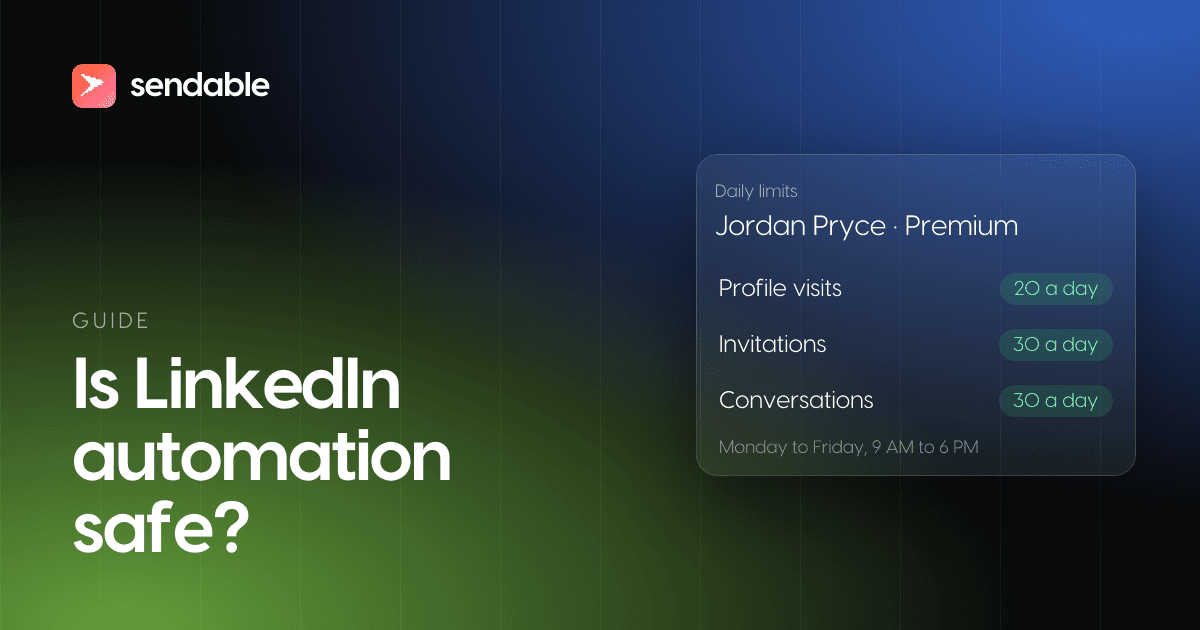
No automation tool can promise that an account will never be restricted, and Sendable, the LinkedIn prospecting tool at getsendable.io, is no exception: LinkedIn's User Agreement does not allow automated invitations or messages. What Sendable does is keep each account under daily limits you can see and change, spread its actions over working hours with random gaps, and pause the account as soon as LinkedIn pushes back. Profile visits are capped at 30 a day. Invitations and conversations start at 30 a day on LinkedIn Premium or Sales Navigator and 20 without. A restricted account stays stopped until you lift the restriction on LinkedIn and reconnect it.
I build Sendable, so weigh what follows accordingly. Every number below comes from the product's code and from the LinkedIn accounts page of the help center.
How Sendable connects to the account
You connect an account from the Senders page, in one of two ways. With your email and password, Sendable gets its own LinkedIn session, so the account stays connected when you log out of LinkedIn in your browser; LinkedIn may ask for a code. With the Chrome extension, Sendable uses the LinkedIn session already open in your browser. The extension only reads that login: it runs no script on LinkedIn's pages. Every action then runs in the cloud, on the schedule below, whether your computer is on or not.
Daily limits
| What | Default | Limit |
|---|---|---|
| Profile visits (every profile Sendable opens with the account) | 20 a day | 30 a day |
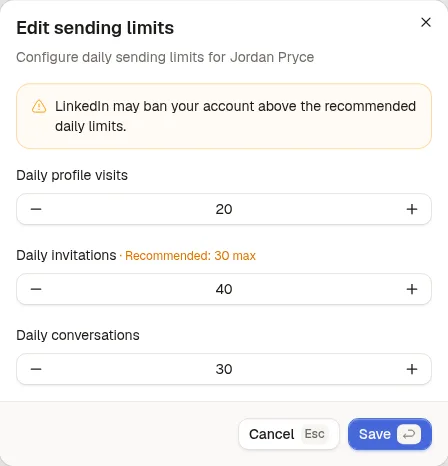
| Invitations | 30 a day with Premium or Sales Navigator, 20 without | Editable, with a warning above 30 |
| Conversations (people messaged in a day) | 30 a day with Premium or Sales Navigator, 20 without | Editable, with a warning above 30 |
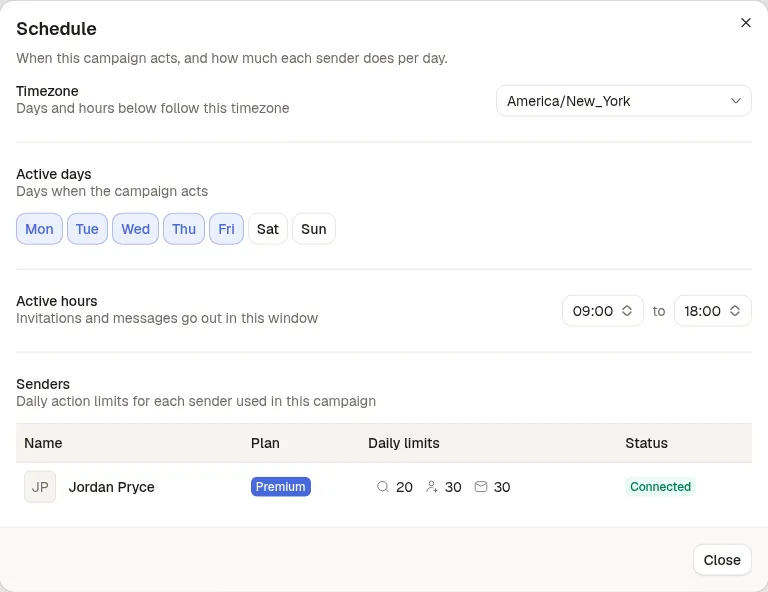
Campaigns act only on their active days and hours: Monday to Friday, 9 AM to 6 PM by default, in the timezone you pick. Inside that window, Sendable takes one action at a time on each account and spreads the day's actions out with irregular gaps, instead of sending them in a batch.
The rest of the safeguards:
- A reply stops that person's sequence.
- A second message to someone already messaged today does not count as a new conversation, and messages an assistant sends through the Sendable MCP count against the same daily conversations.
- Two imports of the same person never get the same step twice in one campaign, and a send interrupted halfway is marked failed rather than sent again.
- Most signals, such as Keyword tracker, Post interactions or Job postings, collect people without using your account at all; the ones that read your own data, such as Profile viewers or Event attendees, wait for their turn on the account like a campaign action. The full list is in the roundup of buying signals software.
When LinkedIn pushes back
- A rate limit. When LinkedIn answers that the account has hit a rate limit, Sendable pauses every campaign and signal action on that account until the time LinkedIn gives, or for 24 hours when it gives none.
- A restriction. When LinkedIn refuses actions because the account is restricted, Sendable first checks that the refusal comes from LinkedIn and not from an outage on Sendable's side. Then it marks the account Restricted, pauses its queue, emails the person who connected it ("LinkedIn has restricted your account", at most once per account every 24 hours) and shows the account at the top of the dashboard.
- No automatic comeback. The Restricted status never clears on its own, even when the session looks healthy again. Log in to LinkedIn as the account, lift the restriction there, then click Reconnect in Sendable.
What Sendable cannot do: it counts only its own actions, so what you or another tool do on the same account is invisible to it. It lets you raise invitations and conversations above 30; it warns, it does not refuse. And it cannot promise how LinkedIn will judge an account.
Set safe limits in Sendable, step by step
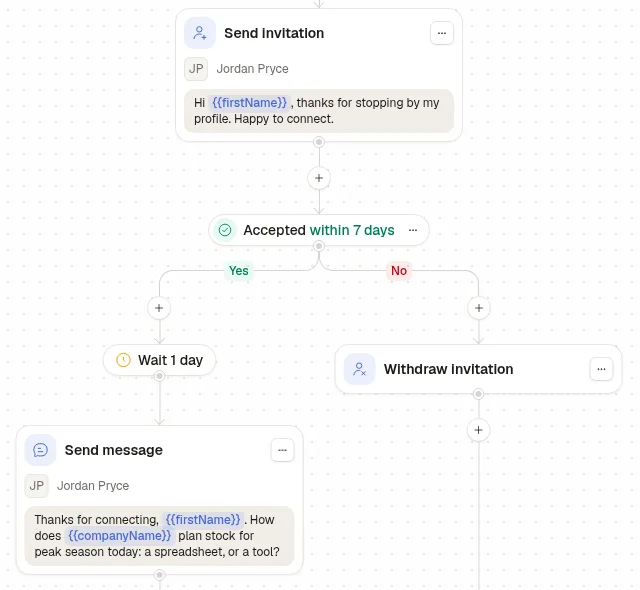
The screenshots come from a demo workspace: Tallyport and every person in it are fictional. Tallyport sells inventory forecasting software to operations leaders at US e-commerce brands, and its campaign writes to the people who viewed Jordan Pryce's LinkedIn profile, from Jordan's Premium account.
Step 1: Set the campaign's hours and check the account's limits
Open the campaign and click Schedule. Pick your buyers' timezone, their working days and the hours when invitations and messages may go out. The Senders table below lists every account the campaign uses, with its plan, its three daily limits (profile visits, invitations, conversations) and its status.
Step 2: Keep each limit at 30 or less
Click the limits in the Senders table to open Edit sending limits. Above the recommended value, Sendable shows "LinkedIn may ban your account above the recommended daily limits." Profile visits stop at 30. If you need more volume, connect a teammate's account rather than raising one.
Step 3: Withdraw the invitations nobody accepts
In the builder, put an Accepted within 7 days condition after the invitation. On Yes, wait a day and send the first message; on No, add Withdraw invitation, so pending invitations never pile up. Anyone who replies leaves the sequence on their own. Which other tools withdraw ignored invitations, and after how many days, is compared in my roundup of LinkedIn outreach software.