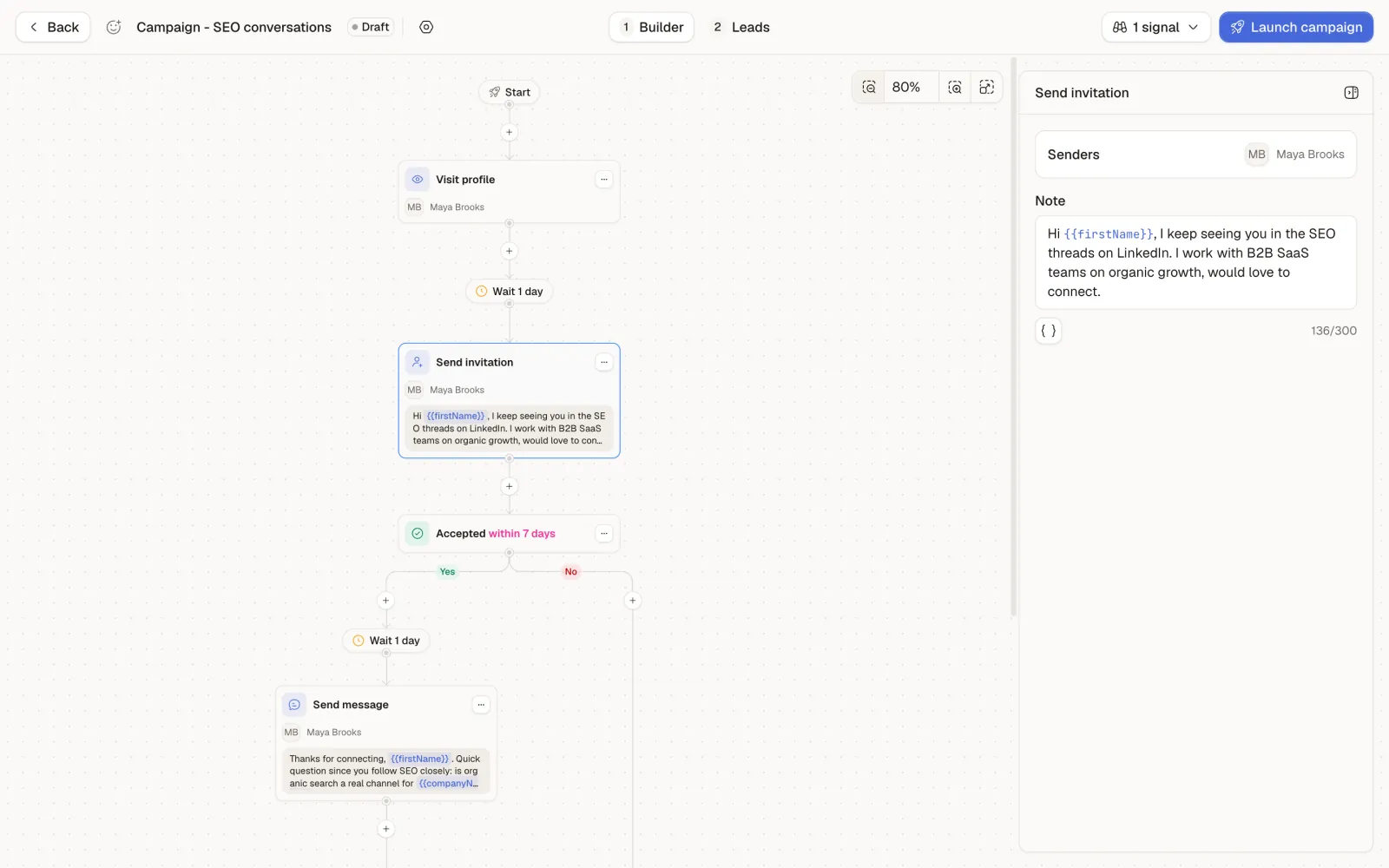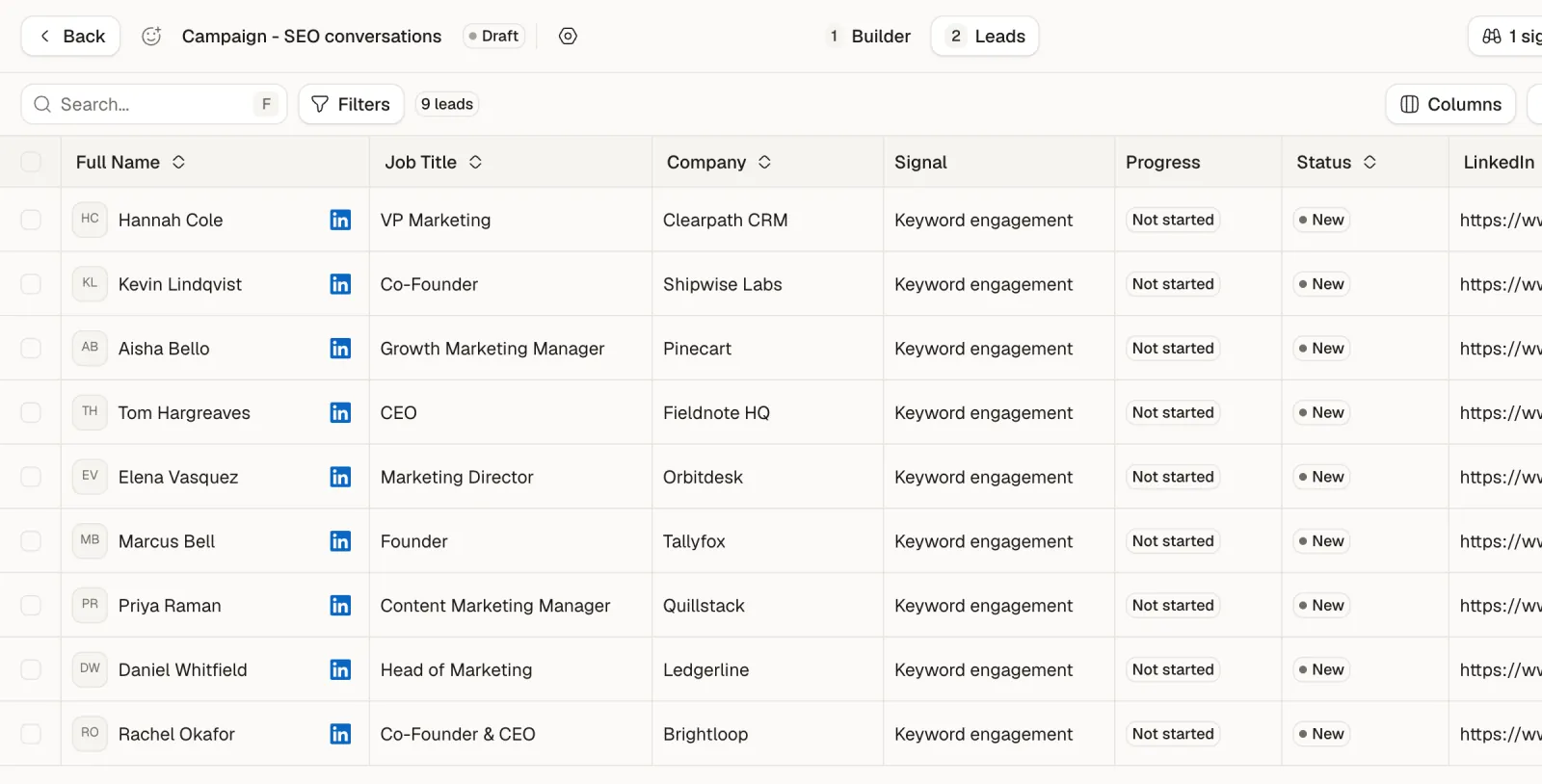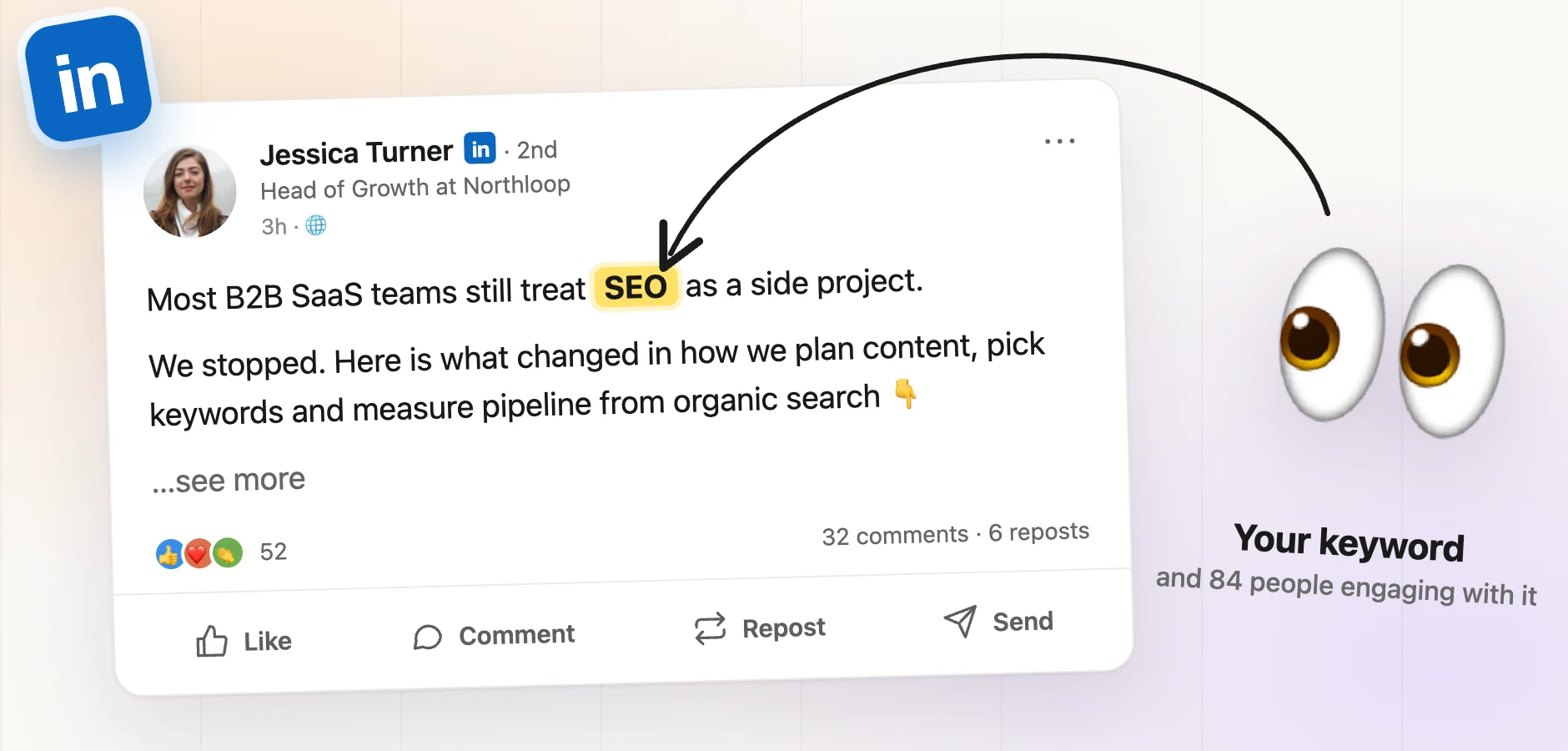
A LinkedIn keyword tracker watches LinkedIn posts for the words your buyers use, then gives you the people who react to and comment on those posts. The second half is the part that matters. The author of a popular SEO post is one person. The dozens of people who reacted and commented are a list of prospects who told you, in public and this week, that they care about SEO.
I run a LinkedIn prospecting agency, and keyword engagement is one of the first signals I set up for a new campaign, because it works even when your own profile has no audience. Below: what a keyword tracker actually does, how to run one by hand for free, and a full tutorial in Sendable using "SEO" as the keyword, from the search to the first message.
What a LinkedIn keyword tracker does
Tools sold as "LinkedIn keyword monitoring" fall into two families, and they solve different problems.
| Mention monitoring | Engagement capture | |
|---|---|---|
| What you get | A feed of posts that contain your keyword | A list of people who reacted to or commented on those posts |
| Built for | Brand and competitor listening, finding posts to comment on | Outbound prospecting |
| What you do next | Read, reply, report | Qualify the people, then contact them |
Mention monitoring answers "who is talking about this?". Engagement capture answers "who cares about this?". For outbound, the second question is the one that fills a pipeline, because a post is not a lead and an author is rarely your buyer. When I say LinkedIn keyword tracker in this article, I mean the full chain: find the posts, collect the engagers, keep the ones who fit, start a conversation.
Why the people engaging with a post are warm leads
A reaction or a comment on a post about your topic is a small action, but it has three properties that a cold list does not have.
- It is voluntary. Nobody reacts to a post about technical SEO by accident. The topic is on their mind.
- It is recent. You see it days after it happened, not months later in a database refresh.
- It gives you a real reason to write. Your first message can open on the topic itself instead of a fake compliment about their profile.
It is also a weaker signal than a company hiring for the exact role you sell to. Engagers include peers, freelancers, students and competitors, and on a popular post most of them will not fit. That is why qualification is not optional, and why I treat keyword engagement as one input among the buying signals I use every month, not as a magic list.
How to track keywords on LinkedIn by hand
You can run a basic keyword tracker with nothing but the LinkedIn search bar.
- Type your keyword. LinkedIn search accepts quotes for exact phrases, parentheses, and the operators AND, OR and NOT, which must be written in uppercase, as explained on LinkedIn's Boolean search help page. Example:
"technical SEO" AND (SaaS OR B2B). - Switch the results to Posts, filter on a recent date posted, and sort by latest.
- Open each post with real engagement, then open its reactions and comments.
- Open each profile, check it against your ideal customer, and copy the good ones into a spreadsheet.
- Repeat every few days, and remove the people you already have.
This works for ten posts a week. It breaks fast after that: a single post can carry hundreds of reactions, LinkedIn does not give you the list of engagers as a file, every profile check is a click, and the same people show up across posts. The repetition is the cost, so it is the part worth automating.
Step by step: build a LinkedIn keyword tracker in Sendable
For this tutorial, picture Rankwise, an SEO software company that sells to B2B SaaS teams in the United States. Its buyers are founders and marketing leads who follow SEO closely. The goal: every week, find the people engaging with SEO posts, keep the ones who match, and invite them to connect with a message about the topic.
The screenshots come from a demo workspace: Rankwise and every person in it are fictional.
Step 1: Create a signal and pick Keyword engagement
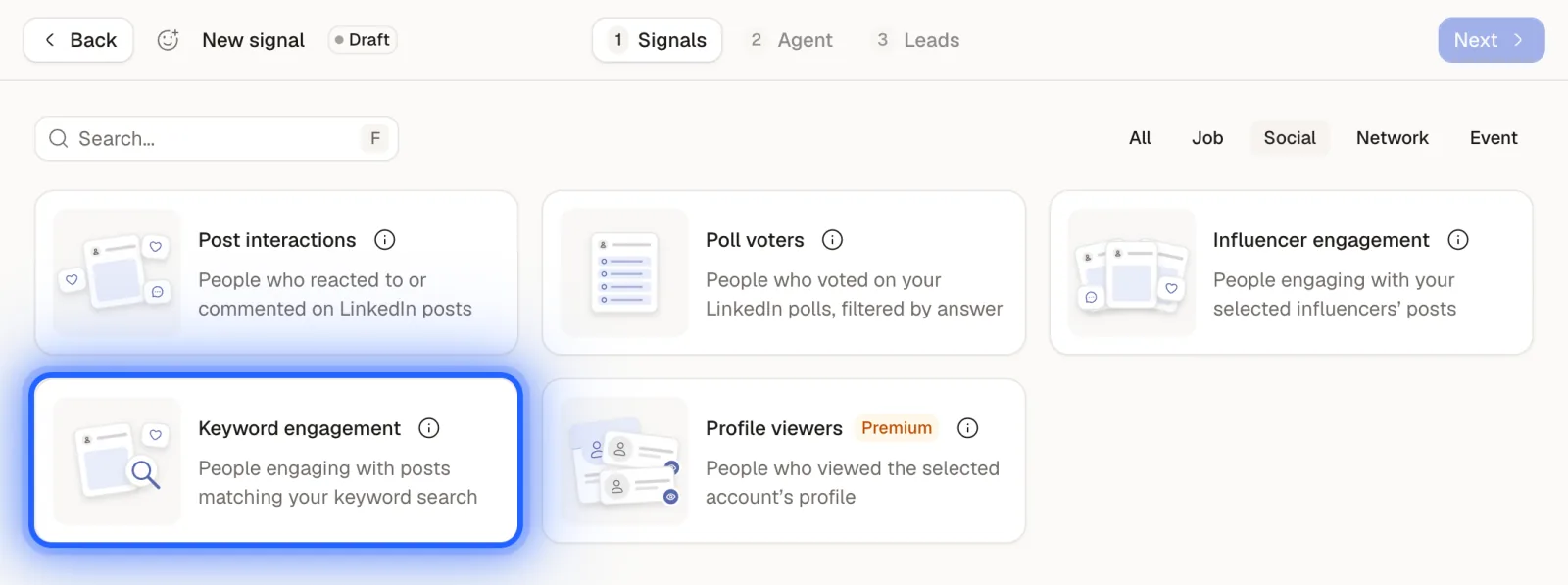
In Sendable, a signal is a search that runs on its own and feeds a list of leads. Open Signals, click Create, and give the signal a name. In the catalog, filter on Social and choose Keyword engagement: "People engaging with posts matching your keyword search".
Step 2: Write the keyword search
The configuration window asks for five things.
- LinkedIn account: the connected account that runs the search.
- Keywords: the same syntax as LinkedIn search, with quoted phrases, AND, OR, NOT and parentheses. Here:
SEO OR "search engine optimization". - Minimum reactions and Minimum comments: posts below these numbers are skipped. The defaults are 10 and 5. I raised reactions to 20 to skip tiny posts with three engagers.
- Date posted: past 24 hours, past week or past month.
- Collect people who: reacted, commented, or both.
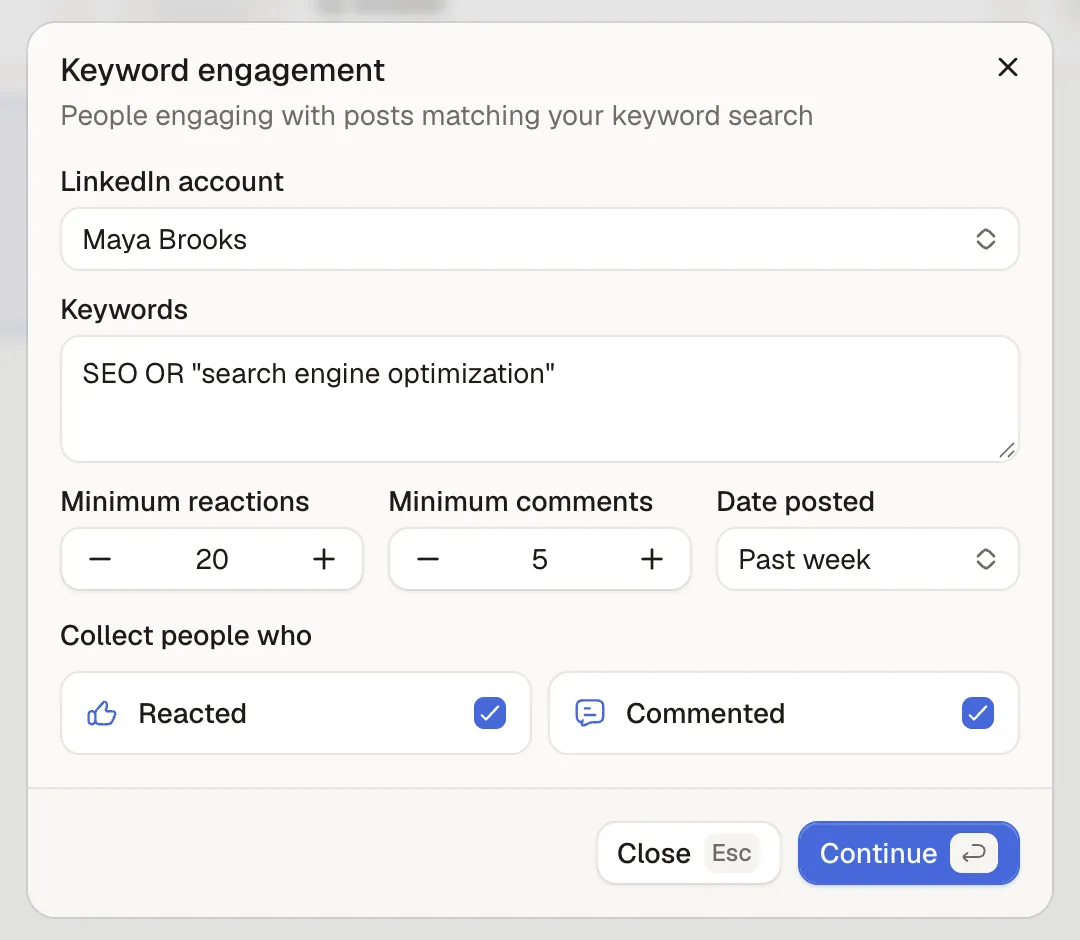
Two practical notes. Each post is collected once, so a post that keeps getting likes for a month does not flood your list with the same audience. And collection runs between 06:00 and 20:00 in your timezone, not around the clock.
If you only want the strongest intent, untick Reacted. A comment costs more effort than a like, and the people who write one are easier to start a conversation with.
Step 3: Describe your ideal customer
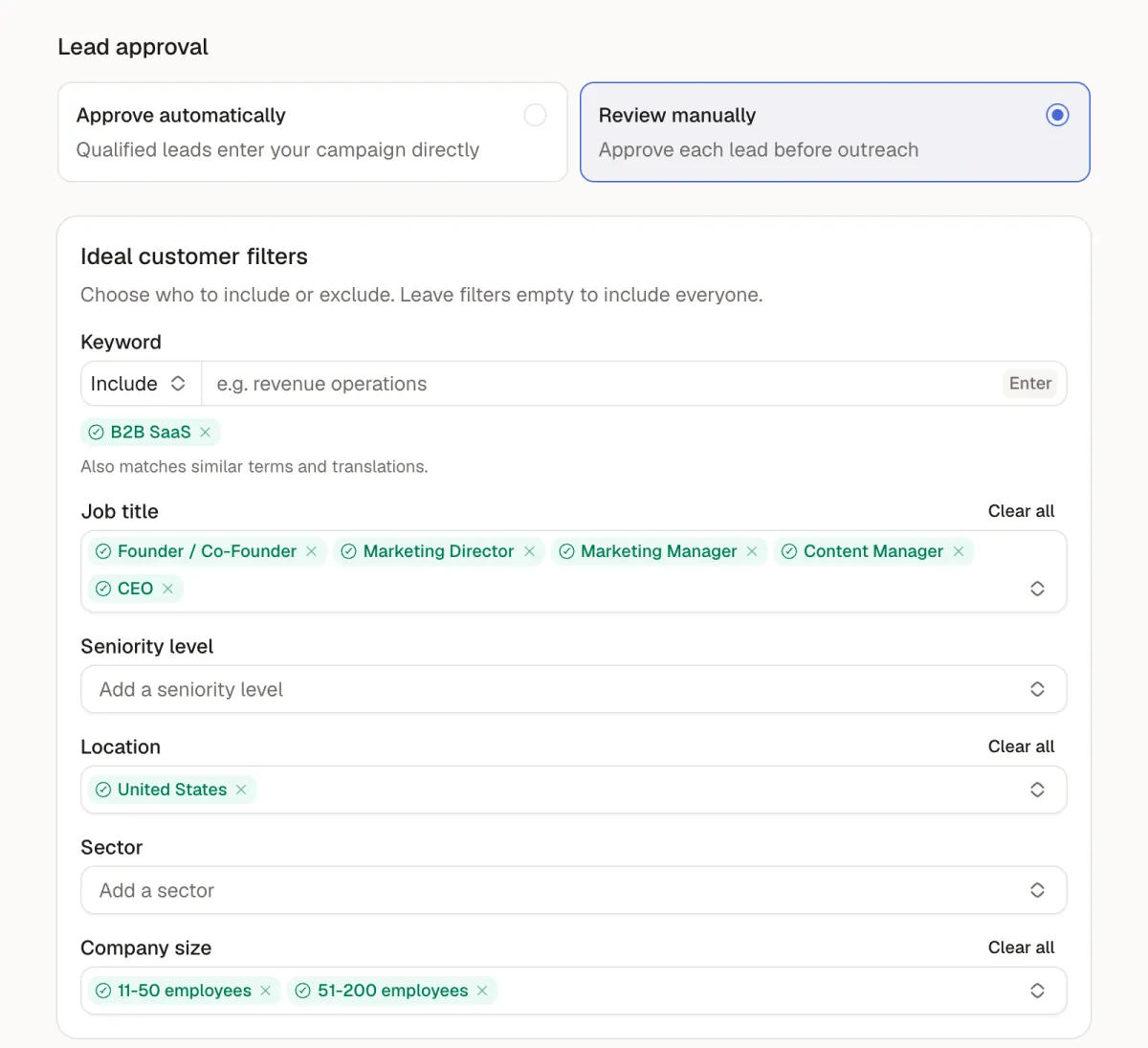
The Agent tab is where you say who you want to keep. Every collected profile is compared with these filters and marked as a match or not, with a written reason.
For Rankwise: the keyword B2B SaaS (it also matches similar terms and translations), job titles Founder / Co-Founder, CEO, Marketing Director, Marketing Manager and Content Manager, location United States, and company sizes 11-50 and 51-200 employees. Leave a filter empty to include everyone on that criterion.
Step 4: Choose approval and exclusions
Still on the Agent tab, pick how matched leads move forward:
- Approve automatically: qualified leads enter your campaign directly.
- Review manually: you approve each lead before outreach.
For the first week of any new keyword, I review manually. It is the fastest way to see whether the keyword brings buyers or just practitioners, and to fix the filters before anyone gets a message.
Below, the Exclude section removes people already in another active agent, people you already contacted, people already in your inbox, and your first degree connections. Turn on the first three at least: a keyword tracker that re-contacts your existing conversations does more harm than good.
Step 5: Launch the agent
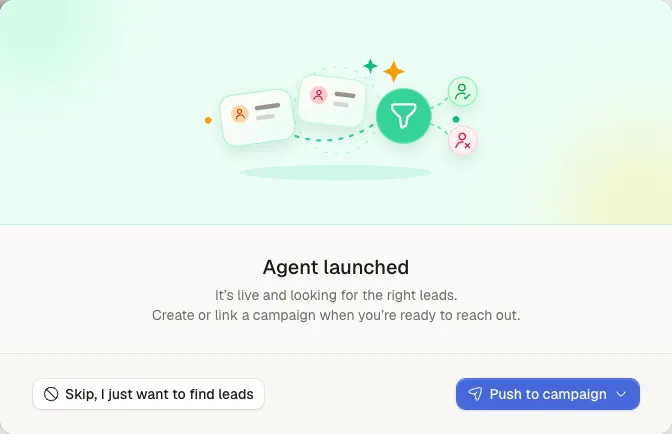
Click Launch Agent. The app confirms that the agent is live and offers two paths: keep collecting leads on their own, or connect a campaign now.
Step 6: Review the leads it finds
The Leads tab fills up as posts are collected and profiles are checked. Each row shows the person, their job and company, a Matched or Not matched status, and the qualification details explaining the decision. The panel on the right shows the activity (which posts were read, with links to them) and the running totals: collected, to qualify, matched and not matched.
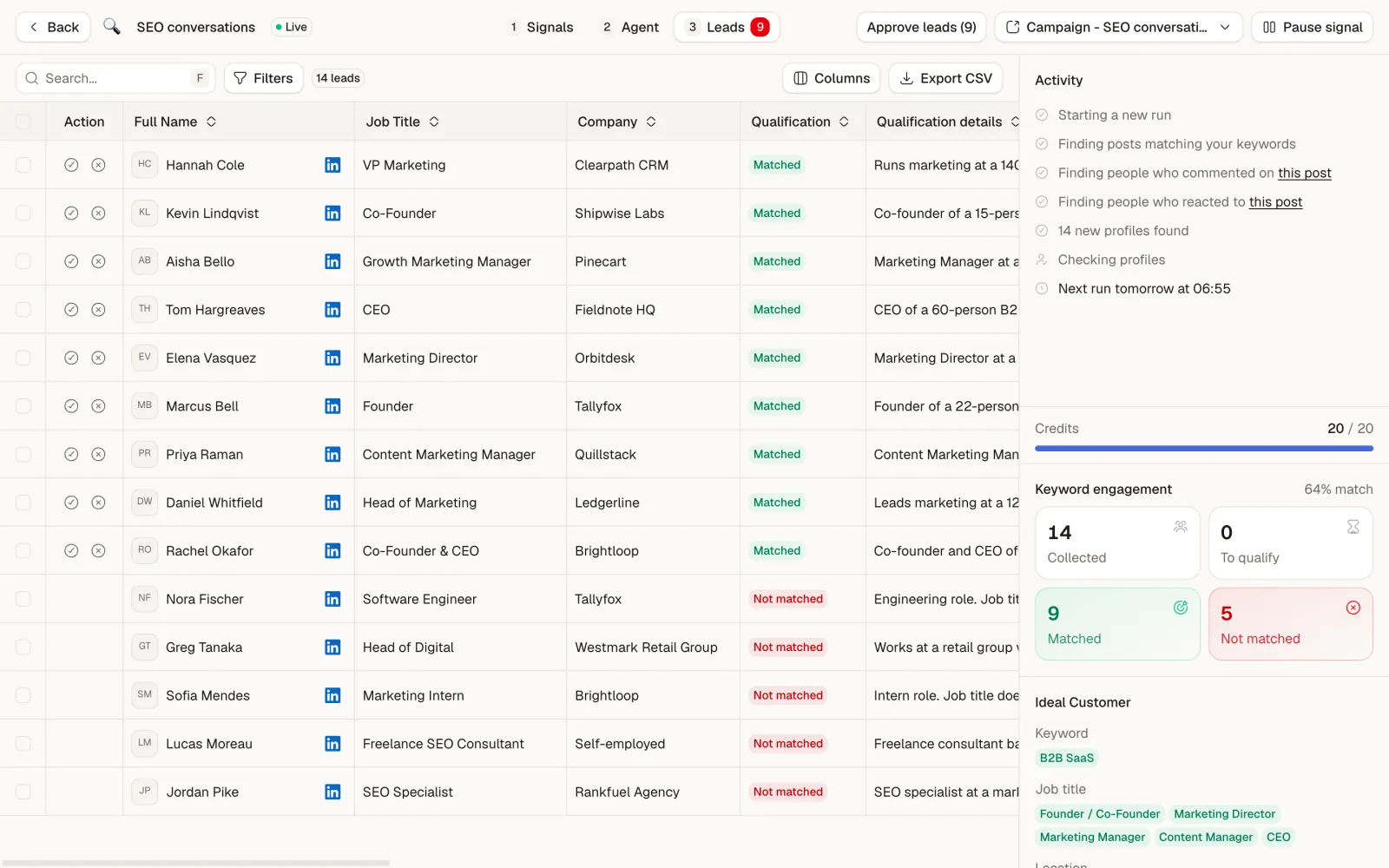
In the demo, 14 people engaged with the SEO posts. Nine matched. The five rejects are exactly the noise you would expect from a topic keyword: an SEO specialist at an agency, a freelance consultant based in France, an intern, an engineer, and a manager at a retail group far above the company size filter. That filtering step is what turns a topic into a prospect list.
Matching is what uses credits: one matched lead costs one credit. Approve the leads you want with the check icon on each row, or all at once with Approve leads.