To automate LinkedIn messages from your own account, you need a third-party automation tool. LinkedIn's own products let you message your connections, send InMails, schedule InMails if you recruit, and buy message ads, but none of them runs a sequence of invitations and follow-ups from a member's account on a schedule, and LinkedIn's Messages API rules out messages triggered by "an automated or scheduled event". Third-party tools do it anyway, which LinkedIn's User Agreement forbids, so every automated message carries a risk for the account that sends it.
Full disclosure: I build Sendable, one of those third-party tools. This page starts with what LinkedIn offers, quoted from its own help pages opened on November 3, 2026, because for some jobs it is enough. Then it shows how the tools work, what keeps an account out of trouble, and how to set up an automated sequence in Sendable, every step checked against the product's code.
My verdict: automate the follow-up, never the reason to write. Software can send the second and third message on time and stop the moment someone answers. It cannot decide why this person should hear from you this week.
Can you send automated messages on LinkedIn?
Yes, but not with LinkedIn's own tools for most jobs. LinkedIn lets you message your connections, send InMails one at a time, schedule InMails in Recruiter and pay for Sponsored Messaging ads. Running a sequence from your own account, on a schedule, to people you picked, takes a third-party tool, and LinkedIn's rules do not allow it.
Every route, side by side. The LinkedIn rows come from LinkedIn's help pages and developer documentation, read on November 3, 2026.
| Route | Who it reaches | What runs without you | Allowed by LinkedIn | Cost |
|---|---|---|---|---|
| LinkedIn messaging | 1st-degree connections and fellow group members | Nothing: no scheduling, no templates | Yes | Free |
| Sales Navigator InMail | Anyone, one InMail credit each | Nothing: "you cannot send InMail messages in bulk" | Yes | Core from US$119.99 a month, which LinkedIn calls an estimate |
| LinkedIn Recruiter | Candidates | Scheduled InMails and one follow-up if there is no reply | Yes, for hiring | A Recruiter seat |
| Sponsored Messaging | An ad audience, not people you pick one by one | The whole send, run as an ad | Yes | Charged per send, in Campaign Manager |
| LinkedIn's Messages API | 1st-degree connections | Nothing: every message needs a member action | Approved partners only | Not for sale |
| Third-party automation tool | Anyone you can invite, then message once connected | Invitations, messages, follow-ups, stop on reply | No | Per LinkedIn account per month |
Only the last row sends a multi-step sequence from your own account to people you chose, and it is the one LinkedIn forbids. The rest of this page explains each row, then how to run the last one with the least risk.
What can LinkedIn's own messaging tools automate?
Almost nothing, outside of hiring. A free account writes to its 1st-degree connections one conversation at a time, Sales Navigator adds InMail without templates or bulk sending, and only LinkedIn Recruiter schedules a message and sends a follow-up on its own. Each tool, from LinkedIn's help pages:
- LinkedIn messaging, free. "On LinkedIn, you can only message your 1st-degree connections (and, within group pages, fellow group members) for free", says the messaging overview. You can start one thread with several connections by typing their names in the To field, but it is a group conversation: everyone sees everyone's replies. There is no scheduling and no saved template.
- Sales Navigator. InMail reaches people outside your network: "InMails are private messages that allow you to message any LinkedIn user without requiring an introduction", one credit per InMail. LinkedIn's InMail page is blunt about the rest: "InMail templates aren't available at this time" and "you cannot send InMail messages in bulk to multiple leads." A message holds 1,900 characters, the subject 200. Core costs US$119.99 a month on LinkedIn's plan comparison, which LinkedIn says lists "estimates".
- LinkedIn Recruiter. The one place LinkedIn automates outreach itself. Recruiter and Recruiter Lite can schedule an InMail for a later date and time. Recruiter, not Lite, adds automated follow-ups: one follow-up, sent 3 to 28 days after the first InMail (7 by default), canceled if the candidate replies. Message templates hold variables such as {firstName}, up to 500 of them. It is built for hiring and only reaches candidates.
- LinkedIn Pages. A company page cannot start a conversation: "Admins can only send a message to a member if they message the Page first", per LinkedIn's help page for Pages.
So for sales, LinkedIn gives you reach (InMail credits) but no automation. That gap is why every LinkedIn automation tool exists.
Can Sponsored Messaging replace automated messages?
For a campaign to a broad audience, yes; for a conversation with chosen people, no. Sponsored Messaging is an ad format: you buy delivery of a message ad or conversation ad to an audience you define with LinkedIn's ad targeting, and LinkedIn picks who receives it and when.
What LinkedIn's Sponsored Messaging page says, read on November 3, 2026:
- Ad sets "are charged on a cost-per-send basis", set up in Campaign Manager.
- "LinkedIn strictly controls the number of times a member can see Sponsored Messaging within a given time period."
- "Only EEA and Switzerland members who opted in to see Sponsored Messaging ads in their LinkedIn inbox can receive these ads."
- An ad is "automatically moved to their Archived Messages" folder "when a new message is served to a member account."
It works for a webinar invitation sent to 20,000 finance directors. It does not work for writing to the twelve people who commented on your post this morning, because you cannot pick them.
Why can't you automate messages through LinkedIn's API?
Because LinkedIn's rules for its Messages API forbid it. The API is "restricted to approved partners, subject to limitations via API agreement", and even those partners may only send a message the member chose to send, at the moment they chose it. From the Messages API documentation:
"A message must be associated with a specific member action. Member actions do not include an automated or scheduled event."
The same page requires that the member "must take an affirmative action to send the message" after seeing the draft. The Invitations API carries the same partner-only restriction. So no official integration can send a scheduled sequence from your account. A tool that does it works around LinkedIn, not with it.
How do LinkedIn automation tools send messages?
They act from your LinkedIn account as if you were clicking: visit a profile, send an invitation (a connection request) with a note, wait for the acceptance, send a message, wait a few days, send a follow-up, and stop as soon as the person replies. You give the tool a list of people and a sequence; it runs the steps on a schedule, under daily limits per account.
Where the tool runs changes what you live with day to day:
| Type | How it works | Example, from the vendor's site on November 3, 2026 | Trade-off |
|---|---|---|---|
| Cloud tool | Runs on the vendor's servers with your LinkedIn session | Waalaxy: "campaigns run on Waalaxy's servers, not on your computer" | Keeps going with your laptop closed; the vendor holds your session |
| Desktop app | Runs on your own computer | Linked Helper "runs as a desktop app"; Dux-Soup sells a local plan that "Runs on your own machine" | Under your control; stops when the machine sleeps |
| Browser extension | Clicks inside your open LinkedIn tab | Waalaxy's FAQ says older tools "required keeping a browser open at all times" | Stops when the browser closes; LinkedIn names extensions in its ban |
None of these is allowed. LinkedIn's page on prohibited software and extensions covers "crawlers", bots, "browser plug-ins, or browser extensions" alike: a cloud tool is more convenient, not more permitted. Eleven of these tools are compared by price and features in my guide to LinkedIn automation tools, nine more are scored on what happens after the invitation in LinkedIn outreach tools, and this page stays on how to run one well.
Is it safe to automate LinkedIn messages?
No automation is risk free. Section 8.2 of LinkedIn's User Agreement forbids using "bots or other unauthorized automated methods to access the Services, add or download contacts, send or redirect messages", and LinkedIn's page on prohibited software says members who use such tools "risk having their accounts restricted or shut down". What you control is the size of the risk.
LinkedIn publishes no daily number for messages or invitations. Its restrictions page names the causes instead: "You've sent many invitations within a short amount of time", and "Many of your invitations have been ignored, left pending, or marked as spam by the recipients." So the habits that matter are the same in every tool:
- Low, steady volume, spread over working hours with irregular gaps, never a burst.
- People with a reason to accept, such as someone who just commented on a post about your topic, rather than a bought list.
- Withdraw what nobody accepts after a week or two, so pending invitations never pile up.
- Stop at the first reply, and answer it yourself.
- One tool per account: two tools on one account double the volume without either one seeing it.
The full checklist, with LinkedIn's rules quoted and what happens when LinkedIn pushes back, is in is LinkedIn automation safe.
What should an automated LinkedIn message say?
Short, specific and easy to answer. LinkedIn's own data on InMail, published by its Talent Blog in November 2023, gives the rules that carry over to any automated message:
- Under 400 characters. "InMails under 400 characters tend to be met with 22% higher response rates than the average response rate for all InMails", and messages over 800 characters do worse than average.
- Personal. "LinkedIn data shows that personalized InMails can increase acceptance rates by 40%."
- One follow-up, not five. "Most LinkedIn InMail responses arrive pretty quickly: 65% arrive within 24 hours and 90% arrive within one week." A follow-up a few days after the first message covers most of that window; a third and a fourth mostly reach people who already decided.
Those figures come from recruiters' InMails, not sales outreach, but the logic holds: the message is read on a phone, between two other things. What each message of a sequence should do, on one example (a scheduling software company writing to people who commented on its founder's post):
| Message | Its one job | Example |
|---|---|---|
| Invitation note | Say why you are inviting, in one line | "Hi {{firstName}}, thanks for weighing in on my post about dispatch boards. Happy to connect." |
| First message, after the acceptance | Ask one question they can answer in ten seconds | "Thanks for connecting, {{firstName}}. Curious: how does {{companyName}} schedule its techs today, a whiteboard, a spreadsheet or software?" |
| Follow-up, a few days later | Offer one useful thing, then stop | "{{firstName}}, last one from me: if same-day jobs are what breaks the schedule, I can send the 2-minute version of how other shops handle them. Want it?" |
| Message to an existing connection | Give the reason for writing now | "Hi {{firstName}}, saw you commented on my dispatch post. How are you handling same-day jobs at {{companyName}} this season?" |
Every message names something the person did, not something about you. No pitch and no calendar link in the first message: a question asks for ten seconds, a meeting for thirty minutes. My free Claude skill for outreach writes sequences on these rules.
How to automate LinkedIn messages in Sendable, step by step
Sendable is the LinkedIn prospecting tool at getsendable.io: it finds people from buying signals, checks each one against the customer you describe, and sends the LinkedIn sequence you wrote. Below is one automated sequence, end to end, with every setting taken from the product as it works on November 3, 2026.
The screenshots come from a demo workspace: Fernlace and every person in it are fictional. Fernlace sells scheduling software to US heating, air conditioning and plumbing companies. Its founder, Dana Whitfield, posted about dispatch boards, and the campaign writes to the owners and managers who commented.
Step 1: Connect your LinkedIn account
On the Senders page, connect the account with your email and password, which gives Sendable its own LinkedIn session (LinkedIn may ask for a code), or with the Chrome extension, which reads the LinkedIn login already open in your browser. Either way, the actions run from Sendable's servers, not from your browser, so the campaign keeps going with your laptop closed.
Each account gets daily limits: 20 profile visits (30 at most), and 30 invitations and 30 conversations with LinkedIn Premium or Sales Navigator, 20 without. You can change them; above the recommended values, Sendable warns "LinkedIn may ban your account above the recommended daily limits." Why these numbers, and what happens when LinkedIn pushes back, is in is LinkedIn automation safe.
Step 2: Pick the template that matches who you write to
Create a campaign: the empty builder offers two templates. Message my connections sends a first message, waits three days and sends a second, for people already in your network. Invitation + 2 messages, the recommended one, likes the person's last post, sends an invitation, waits for the acceptance, then sends two messages.
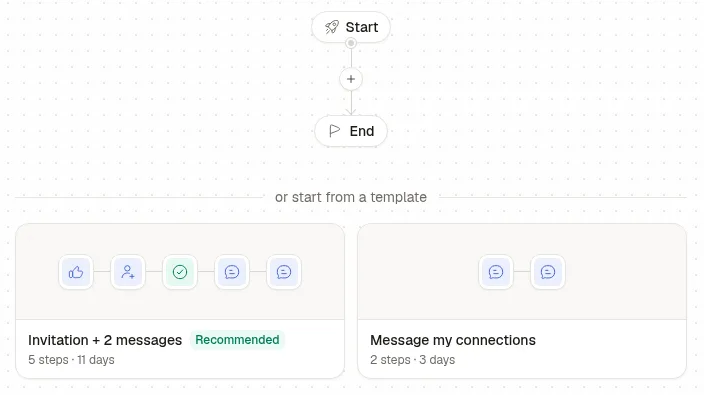
The choice is not cosmetic. Outside InMail, LinkedIn messages only reach 1st-degree connections, so in Sendable a Send message step sent to someone you are not connected to fails for that lead, and the builder will not let you put one on the No branch of Invitation accepted. Someone who is already a connection when Send invitation runs skips straight to the Yes branch.
Step 3: Add the people who get the messages
Add leads takes three sources: Import CSV, Existing leads and From signals. A signal keeps adding people on its own: 1st degree connections for your network, Post interactions for the people who react to or comment on chosen posts, and others such as profile viewers or job changes, listed in my roundup of buying signals software.
Each person a signal finds is checked against the ideal customer you describe, and the verdict comes with its reason. Fernlace keeps owners, directors and managers of US heating and plumbing companies with 11 to 200 employees, so a technician, a marketing consultant, a 4,000-person group and a plumber in France stay out. With Lead approval set to Review manually, nobody enters the campaign before you approve them; the default is Approve automatically. To send a resource to everyone who comments on a post, the same setup is described on the LinkedIn lead magnet automation page.
Step 4: Write the invitation note and the messages
Click a step to edit it. Type double braces to insert a variable: {{firstName}}, {{lastName}}, {{companyName}}, {{jobTitle}} and the rest of the lead's fields, plus your own custom fields. The invitation note, the text attached to the connection request, holds up to 300 characters, with a counter. A Send message step can hold several text bubbles, a voice bubble recorded in the browser (up to 60 seconds) and files, and its A/B test switch compares up to 10 versions, sending each new lead the least used one until you pick a winner.
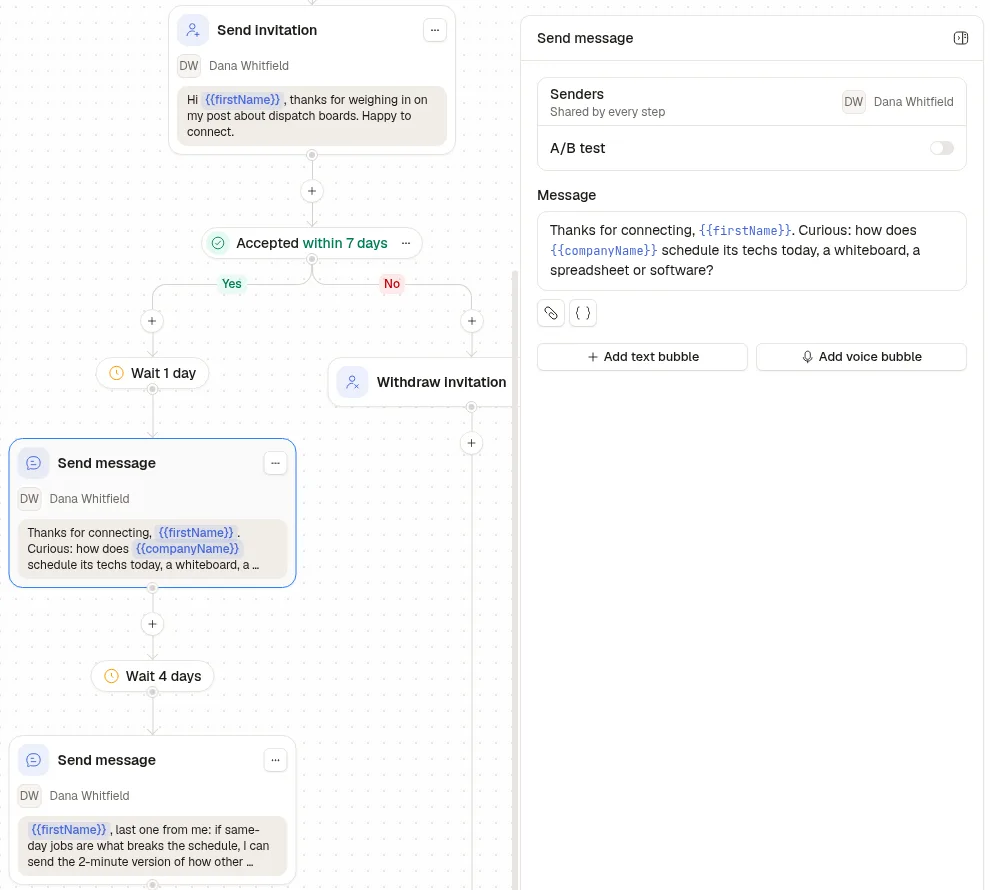
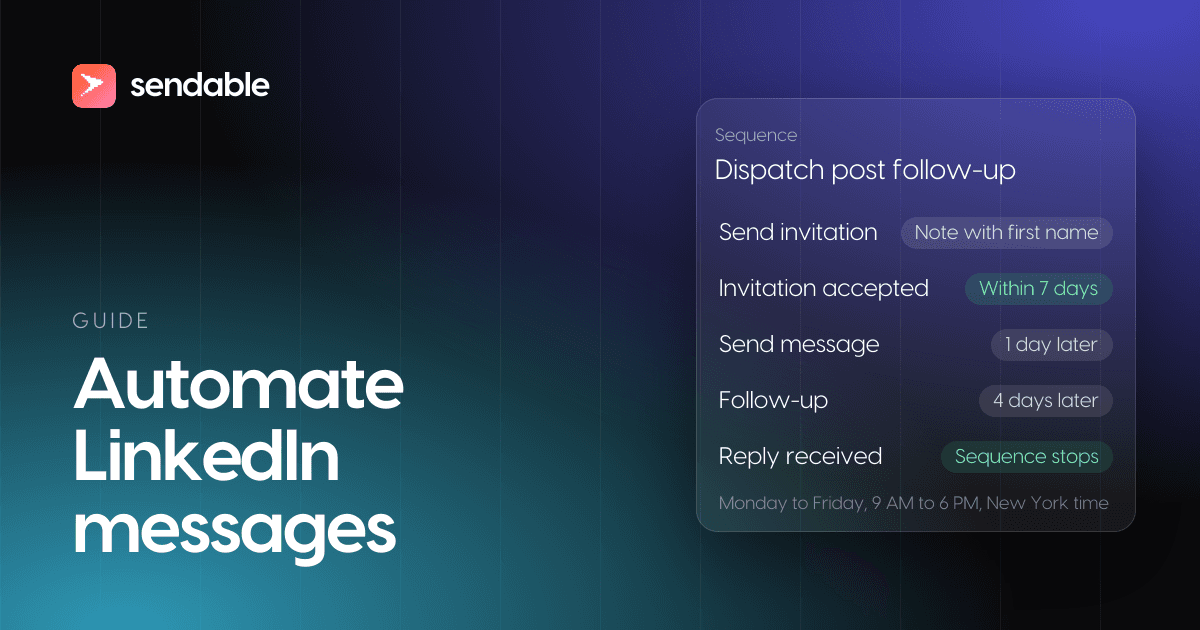
Sendable puts a wait before each action, which you can change. Fernlace's sequence visits the profile, waits a day and sends the invitation. Invitation accepted gives it 7 days (3 by default, up to 30, or Wait until accepted, which gives up after 14). Yes: wait a day, send the question, wait 4 days, send the follow-up. No: Withdraw invitation, so pending invitations never pile up.
Step 5: Check every lead's messages before launch
The Review step shows each lead's sequence with the variables filled in, and Edit changes the text for that lead only. Read a few: this is where a company name that reads oddly in a sentence, or a "Hi ," with no first name, gets caught.
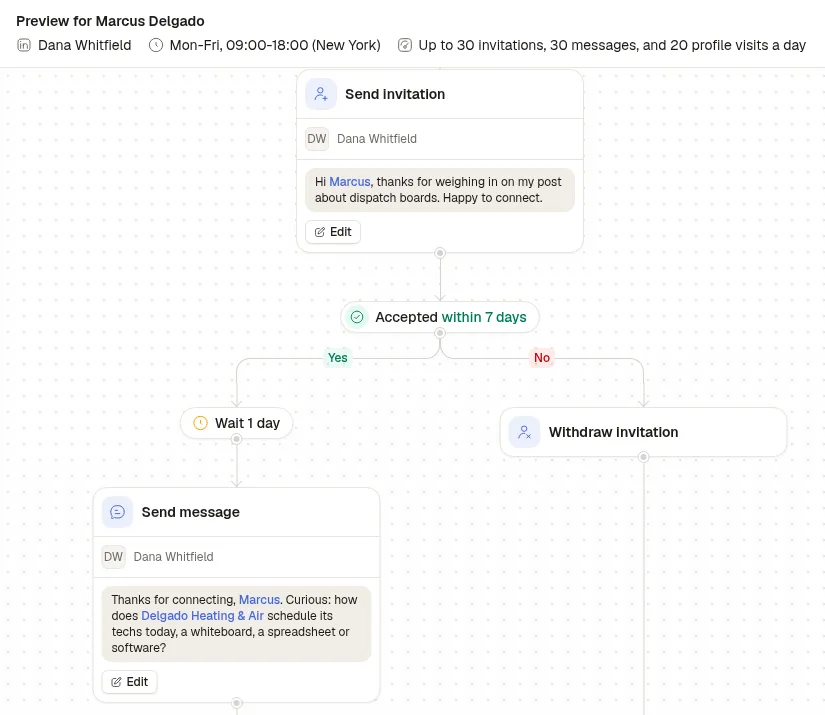
An empty variable turns into nothing rather than stopping the lead, so the list counts the leads "with missing variables" and filters them for you. An unknown variable or single braces block the launch.
Step 6: Set the schedule, launch and answer replies
In Schedule, set your buyers' Timezone, Active days and Active hours: Monday to Friday, 9:00 to 18:00 by default. Sendable spreads each day's actions over that window with irregular gaps and takes one action at a time per account. Then click Launch campaign.
A reply stops that person's sequence, in every campaign of the team that already contacted them, and Sendable checks once more for a reply just before each message goes out. The reply lands in the Inbox, where you answer it yourself; with several LinkedIn accounts, you switch from one account's conversations to the next.