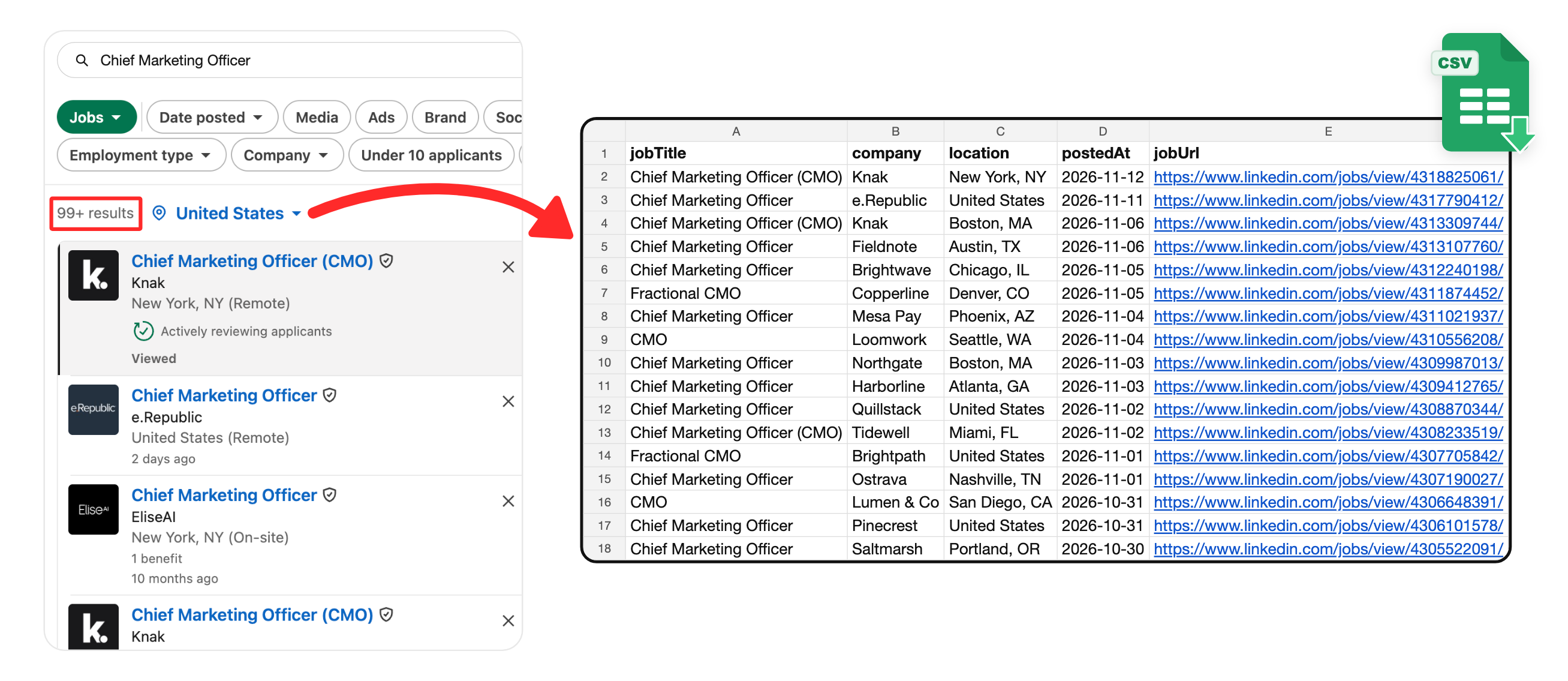
Every job post on LinkedIn tells you who is hiring, for which role, and where. This free LinkedIn job scraper turns a LinkedIn job search into a spreadsheet: type a job title, pick a country, and export up to 50 of the latest postings from the past 30 days to a CSV file. No login, no cookies, no Chrome extension, and the file opens in Excel or Google Sheets.
How to Scrape LinkedIn Jobs in 3 Steps
The tool above takes less than a minute:
- Type the job title the way companies write it in their postings: "Chief Marketing Officer", "Head of Sales", "Data Engineer".
- Pick the country where the roles are based. The search covers the whole country.
- Click Export job posts. The first results appear on the page, laid out like LinkedIn's own cards. Leave your work email and the full CSV lands in your inbox, usually within a minute.
The date range is fixed to the past 30 days, the same window as LinkedIn's own "past month" filter, so every row is a recent role. Other periods come with Sendable's paid plans.
What Data Does the LinkedIn Job Scraper Extract?
Each row of the file is one posting, with the fields you need to act on it:
| Column | What it holds | Example |
|---|---|---|
| Job title | The title as the company wrote it | Chief Marketing Officer (CMO) |
| Company | The company that published the role | Knak |
| Company page | The company's LinkedIn page | linkedin.com/company/... |
| Location | The city, region or country of the role | New York, NY |
| Date posted | The day the posting went live | 2026-11-12 |
| Posting URL | The link to the original listing | linkedin.com/jobs/view/... |
The file sticks to the fields every listing has. It does not include the full description, the salary, the seniority level, the employment type or the number of applicants.
It keeps the postings whose title contains every word you typed. A posting that only mentions your title in its description, such as a role reporting to a Chief Marketing Officer, is left out.
One posting per row means the usual spreadsheet moves work right away: sort by date to see the newest roles first, filter the location column to keep one city, or count the rows per company to spot the teams that are growing.
Why Only Postings From the Past 30 Days?
Because a posting loses its value fast. LinkedIn's own search filters stop at "the past month", and for good reason: past that, a role has often been filled, paused or quietly dropped. Thirty days gives you a full month of postings: enough volume to work with, recent enough that most hires are still in progress.
Old listings are not just less useful, some never had a hire behind them. Greenhouse's 2024 State of Job Hunting report says that in any given quarter, 18 to 22% of the jobs posted on its platform "are classified as ghost jobs": listings that stay online with no real intent to hire.
You can see the problem in any search left on its default settings. In November 2026, a search for Chief Marketing Officer in the United States showed, in third position, a role published 10 months earlier. The 30-day window keeps listings like that out of your file.
What Can You Do With LinkedIn Job Data?
LinkedIn is where companies hire. Its own figures count 71 million companies on the platform and around 9,000 applications submitted every minute. That makes its listings one of the most complete public records of who is hiring, for what, right now. Here is what teams do with an export.
Find companies hiring for the role you sell to
A new role is a buying signal in plain sight. A company hiring its first Head of Marketing is about to buy marketing tools, agencies and data. A company hiring five SDRs is scaling outbound and will need sales tools, training and lead lists.
For B2B lead generation, search the role whose arrival creates the need for your product: the export gives you the accounts to contact this month, each with a public, dated reason to write to them. Which roles to track and who to contact at each company is covered in our guide to hiring signals, and the other signals worth stacking with them are in how to identify buying signals.
Find clients for a recruiting or staffing agency
For a recruiter, every open role is a company with a need and a hiring budget. Export the positions you place, in the country you cover, and you have a list of companies to pitch while the role is still open. Sort by date to call the newest first, and remove the companies you already work with.
Track what your competitors are hiring for
Hiring says where a company is going before its website does. A competitor recruiting enterprise account executives in Germany is moving upmarket there. Export the titles your competitors typically hire for, in the countries you care about, then filter the company column to see who is building what.
Research a market
Candidates, analysts and founders use the same export to answer simple questions: which companies hire for a role in a country, how they title it, and which cities come up most. A spreadsheet answers those questions faster than scrolling through search results page by page.
Worked Example: From a Search to a List of Accounts
Say you sell a marketing analytics product to companies that are building their marketing team. The new Chief Marketing Officer is the person who will choose the stack. Here is how one export becomes an account list.
- Search the role. Title "Chief Marketing Officer", country "United States".
- Merge the duplicates. Companies often publish one role in several cities. In the November 2026 search above, Knak listed its CMO role twice, once in New York and once in Boston, both remote. Sort by company and keep one row per company: that is one account, not two.
- Remove the noise. Delete the staffing agencies recruiting for a client they do not name, and the companies you cannot sell to: too large, too small or in the wrong industry.
- Rank by intent. Run a second export for a related title, such as "Head of Marketing" or "Marketing Manager", and look for the companies that appear in both files. A company opening several marketing roles in the same month is building a team, not replacing one person. Put those first.
- Find the person to write to. Before the new CMO starts, the CEO or founder owns the decision, so write to them. Once the CMO is in the seat, they become your contact, and LinkedIn job change alerts tell you when that happens.
The result is a short list of companies with a public reason to talk to you, and a first message that opens on something true about them: the role they just opened.
Ways to Scrape LinkedIn Jobs, Compared
There are five common ways to get these listings into a spreadsheet. They differ on two things: whether your LinkedIn account is involved, and how much setup you take on.
| Method | Login needed | Setup | What you get | Cost |
|---|---|---|---|---|
| Copying results by hand | Not to browse | None | What you paste, row by row | Free, in hours |
| LinkedIn job alerts | Yes | One saved search per alert | Emails with new postings, 20 alerts at most | Free |
| Chrome extensions | Yes, they run in your session | Install, then scroll the results | A CSV of the pages you load | Free to paid plans |
| Scraping APIs and Python scripts | No | Code, proxies and upkeep when the site changes | JSON or CSV | Pay per result, or your time |
| This free scraper | No | None | A CSV of up to 50 recent job posts, by email | Free |
Alerts have a ceiling: "The max number of job alerts a member can have at once is 20", according to LinkedIn's help page on alerts, and they arrive as emails or notifications, not as a file.
The official route is closed to most teams. LinkedIn's Job Posting API lets "authorized third parties such as clients, ATS systems, and job distributors" publish openings on the platform, not search other companies' listings, and LinkedIn says it is "currently not accepting new partnerships" for it.
A LinkedIn Job Scraper With No Extension and No Login
Most scrapers in this category are Chrome extensions. To read the results, they sit in your browser and act through your logged-in session. Some go further and ask for your li_at cookie, which is essentially the key to your account.
That is a real risk. LinkedIn's page on prohibited software and extensions is explicit: "Any member who uses tools for such purposes is in violation of the User Agreement." Putting your profile on the line to save an afternoon of copy and paste is a bad trade.
This tool works differently:
- No Chrome extension to install
- No login: we never ask for your credentials
- No cookie: your session stays on your machine
- Nothing tied to your account, so there is nothing to flag
You type a title, pick a country and get the file. Postings are public by design: companies publish them to reach as many candidates as possible.
From a CSV to Conversations, Every Day
The export gives you a one-month snapshot, once. Hiring does not stop: new roles open every day, and the companies worth contacting change with them.
That is what Sendable does continuously. Its Job postings signal checks new listings for your role every day, finds up to 3 people per hiring company with the titles you choose, checks each one against your ideal customer, and sends the matches into a LinkedIn sequence. The posting window goes from 24 hours to 30 days, and the search needs no LinkedIn account. The hiring signals guide walks through a full setup, and every plan on the pricing page starts with a 7-day free trial.
Looking for the people who engage with posts in your market rather than the companies hiring? The LinkedIn comment exporter does the same for the comments and likes of any post.
Frequently Asked Questions
How do I scrape LinkedIn jobs for free?
Type a title and pick a country in the scraper at the top of this page, then click Export job posts. The first results appear on the page right away. Leave your work email to get the CSV file with up to 50 postings from the past 30 days: title, company, location, date posted and link.
Can I export LinkedIn job search results to Excel or Google Sheets?
Yes. The export is a standard CSV file that opens in Excel, Google Sheets or Numbers with no conversion: one posting per row, one field per column. You can sort it by date, filter it by city or count the rows per company like any other spreadsheet.
Do I need a LinkedIn account, a cookie or a Chrome extension?
No. Everything runs from this page. There is nothing to install, and we never ask for your login or cookies. That is the main difference with most scrapers, which work as browser extensions inside your LinkedIn session.
Is it safe for my LinkedIn account?
Yes, because your account is never involved. The tool reads public listings, not your session, so there is no automated activity on your profile to detect.
How many postings can I export for free?
Each export holds the 50 most recent postings from the past 30 days whose title matches yours, in the country you picked. You get two free exports, with no account required. Create a Sendable account to export more.
Can I search a city instead of a whole country?
The tool searches a whole country. Every row includes the location of the role, so filter that column in Excel or Google Sheets to keep one city or region.
Can I change the date range?
No, the free tool always exports the past 30 days, the same window as LinkedIn's "past month" filter. Other periods come with a paid plan: the Job postings signal in Sendable follows new postings every day, with a window of 24 hours, 7, 14 or 30 days.
Does LinkedIn have an API for job posts?
LinkedIn's official Job Posting API is built to publish openings on LinkedIn, not to search them, and its use is restricted to developers LinkedIn approves. LinkedIn is not accepting new partnerships for it. To get these listings into a spreadsheet, a scraper is the practical route.